

How to Add the Classic Editor in WordPress: A Comprehensive Guide
- December 14, 2025
- Other Plugins
WordPress has evolved significantly over the years, introducing various improvements to enhance user experience. One of the most notable changes was the introduction of the Gutenberg editor in WordPress 5.0, replacing the Classic Editor as the default content editor. While Gutenberg offers a block-based editing experience, many users still prefer the Classic Editor due to its simplicity and familiarity.
In this article, we will provide a complete guide on how to add the Classic Editor in WordPress, why you might want to use it, and how it benefits website owners, bloggers, and businesses. Whether you're a content creator, developer, or digital marketing professional, understanding the Classic Editor’s functionality can help you streamline your content creation process.
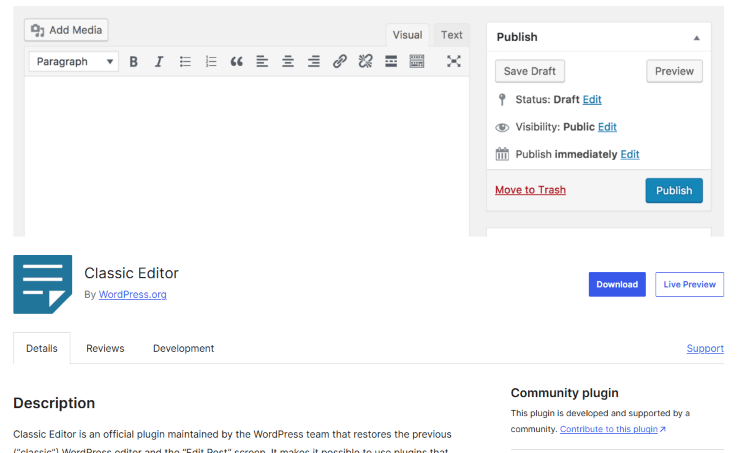
Why Use the Classic Editor in WordPress?
While the Gutenberg editor offers a modern, block-based editing approach, many WordPress users prefer the Classic Editor for several reasons:
1. Familiar Interface
The Classic Editor provides a user-friendly interface that resembles traditional word processors like Microsoft Word. This makes it easier for users who are accustomed to a straightforward text-based editing environment.
2. Plugin and Theme Compatibility
Many older WordPress plugins and themes were designed with the Classic Editor in mind. Switching to Gutenberg may cause compatibility issues, making the Classic Editor a better choice for certain sites.
3. Faster Content Creation
For users who frequently publish blog posts, the Classic Editor offers a more streamlined workflow. The block-based approach of Gutenberg can sometimes slow down the content creation process.
4. Customization and Control
Some website owners and developers find it easier to customize content using the Classic Editor without dealing with the complexities of Gutenberg blocks.
5. Reduced Learning Curve
New WordPress users often find the Classic Editor more intuitive than Gutenberg, which requires learning how to use blocks effectively.
How to Install and Enable the Classic Editor in WordPress
If you prefer to use the Classic Editor instead of Gutenberg, WordPress allows you to install and enable it easily. Below are the step-by-step instructions:
Step 1: Log into Your WordPress Dashboard
Go to your WordPress website and log in using your admin credentials.
Step 2: Navigate to Plugins > Add New
In the WordPress dashboard, hover over the Plugins menu and click on Add New.
Step 3: Search for "Classic Editor"
In the plugin search bar, type Classic Editor. The official Classic Editor plugin developed by WordPress Contributors should appear at the top of the search results.
Step 4: Install and Activate the Plugin
Click on the Install Now button, and once the installation is complete, click Activate to enable the Classic Editor on your site.
Step 5: Configure Classic Editor Settings (Optional)
Once activated, navigate to Settings > Writing to adjust your Classic Editor settings. Here, you can choose to:
- Set the Classic Editor as the default editor.
- Allow users to switch between Classic Editor and Gutenberg if needed.
Alternative Methods to Enable the Classic Editor
If you do not want to install an additional plugin, you can enable the Classic Editor using the following methods:
1. Use Code to Disable Gutenberg
You can add the following code snippet to your theme’s functions.php file to disable Gutenberg and force the use of the Classic Editor:
php
CopyEdit
add_filter('use_block_editor_for_post', '__return_false');
2. Use the Classic Editor Plugin Settings
If you already have the Classic Editor plugin installed, make sure that it is configured to disable Gutenberg entirely.
Classic Editor vs. Gutenberg: Which One is Right for You?
When choosing between the Classic Editor and Gutenberg, consider the following:
| Feature | Classic Editor | Gutenberg |
| Ease of Use | Simple and familiar | Requires learning new block-based system |
| Customization | Limited | Highly customizable with blocks |
| Performance | Faster for text-based content | Can slow down for complex layouts |
| Plugin Compatibility | Compatible with older plugins | Some older plugins may not work |
| Ideal For | Bloggers, content writers, businesses | Advanced designers, developers |
If you prefer a simple, traditional editing experience, the Classic Editor is the way to go. However, if you need advanced content layouts and enhanced customization, Gutenberg might be the better choice.
Conclusion
The Classic Editor remains a popular choice for many WordPress users despite the introduction of Gutenberg. Whether you’re a blogger, a business owner, or a developer, knowing how to add and use the Classic Editor can significantly improve your content creation workflow.
At Nafas Digital, we specialize in WordPress development, customization, and content strategy. If you need assistance in setting up the Classic Editor or optimizing your WordPress website, our expert team is here to help. Contact us today for a consultation and let us enhance your WordPress experience!
About us and this blog
We are a digital marketing company with a focus on helping our customers achieve great results across several key areas.
Request a free quote
We offer professional SEO services that help websites increase their organic search score drastically in order to compete for the highest rankings even when it comes to highly competitive keywords.
Subscribe to our newsletter!
Unlock Your Growth. Let's Talk Strategy.
Share Your Vision With Us
We craft data-driven digital marketing campaigns that drive traffic, generate leads, and boost your sales. Share your goals with us.
More from our blog
See all postsRecent Posts
- Comprehensive Guide to Shopify Pricing: Everything You Need to Know December 20, 2025
- What is "Salla" Store? A Comprehensive Overview December 20, 2025
- The Cost of Building a Salla Store: A Comprehensive Guide December 20, 2025
