

How to Integrate and Optimize Contact Form 7 for Your Website
- December 14, 2025
- Other Plugins
A well-structured contact form is crucial for any business or website, as it serves as the primary bridge between you and your visitors. Whether you run a corporate site, an e-commerce store, or a personal blog, a contact form simplifies communication and enhances user experience.
Among the numerous contact form plugins available for WordPress, Contact Form 7 stands out as one of the most popular and versatile solutions. This article provides an in-depth look into how to install, configure, and optimize Contact Form 7, ensuring your website captures leads efficiently.
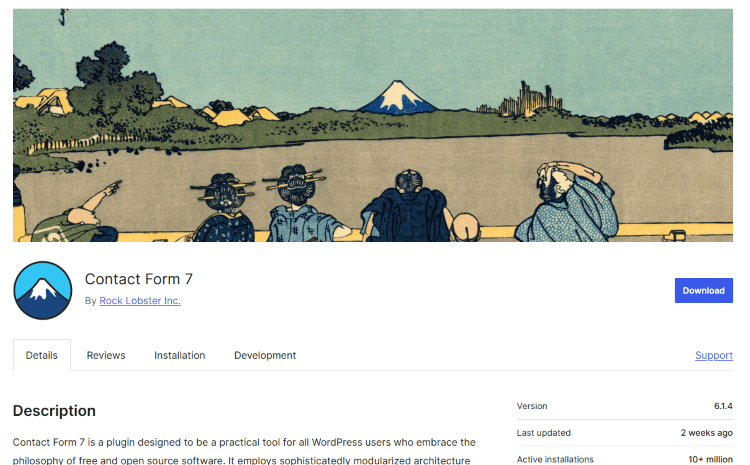
Why Choose Contact Form 7?
Contact Form 7 is widely used because of its simplicity, flexibility, and compatibility with numerous extensions. Here are some key reasons why it remains a top choice:
✅ Free and Open-Source
Contact Form 7 is a completely free plugin, making it an excellent option for businesses of all sizes.
✅ Customizable and Extendable
It offers extensive customization options, allowing users to modify forms to match their branding. Additionally, it supports extensions that improve functionality.
✅ Easy Integration with Third-Party Tools
Contact Form 7 can integrate with popular third-party services such as Google Analytics, Mailchimp, HubSpot, and Zapier, expanding its capabilities.
✅ Spam Protection
With support for reCAPTCHA, Akismet, and Honeypot, the plugin effectively reduces spam submissions.
✅ Lightweight and SEO-Friendly
Unlike many other form plugins, Contact Form 7 is lightweight and doesn’t slow down your website.
Step-by-Step Guide to Installing Contact Form 7
Setting up Contact Form 7 is straightforward. Follow these steps:
1. Install the Plugin
- Log into your WordPress dashboard.
- Navigate to Plugins > Add New.
- Search for Contact Form 7.
- Click Install Now and then Activate.
2. Create Your First Contact Form
- Once activated, go to Contact > Contact Forms.
- Click Add New to create a new form.
- Customize the form fields as needed.
3. Configure Email Settings
- Click on the Mail tab to set up email notifications.
- Ensure that the "To" field contains your business email.
- Customize the email format to include form data.
4. Add the Form to a Page
- Copy the generated shortcode.
- Paste it into a page, post, or widget where you want the form to appear.
Customization: Making Your Contact Form More Effective
To ensure the best user experience, consider customizing Contact Form 7 beyond its default settings.
🎨 Styling the Form
Contact Form 7 does not come with built-in styling, so you may need CSS to enhance its appearance. Example:
css
CopyEdit
.wpcf7 input,
.wpcf7 textarea {
width: 100%;
padding: 10px;
border: 1px solid #ccc;
border-radius: 5px;
}
📌 Adding Custom Fields
Besides the standard name, email, and message fields, you can add custom fields such as:
- Dropdown menus
- Checkboxes
- Radio buttons
- File upload options
Example of adding a phone number field:
html
CopyEdit
<label> Phone Number
[tel your-phone]
</label>
🔒 Enabling reCAPTCHA for Spam Protection
- Go to reCAPTCHA Admin Console and generate API keys.
- In WordPress, navigate to Contact > Integration.
- Enter the site and secret keys to enable Google reCAPTCHA v3.
Integrating Contact Form 7 with Marketing & CRM Tools
One of the biggest advantages of Contact Form 7 is its ability to integrate with marketing automation tools. This ensures that form submissions are not just emails but are converted into valuable leads.
🔗 Connect Contact Form 7 with Mailchimp
If you collect emails for email marketing, integrating Mailchimp is a great choice.
- Install the Contact Form 7 Mailchimp Extension
- Connect your Mailchimp API key.
- Map the form fields to your Mailchimp list.
- Enable double opt-in to ensure compliance with GDPR.
📞 Sync with HubSpot CRM
If you use HubSpot, syncing form data can help manage leads more effectively.
- Install Contact Form 7 - HubSpot Integration.
- Authenticate your HubSpot account.
- Map the form fields to HubSpot properties.
- Enable automatic lead tracking.
🔄 Automate Workflows with Zapier
Zapier allows you to connect Contact Form 7 with over 5,000+ apps.
- Sign up for Zapier.
- Create a new Zap (automation workflow).
- Choose Contact Form 7 as the trigger.
- Select an action, such as sending form data to Google Sheets or Slack.
Best Practices for Optimizing Contact Form 7
To get the most out of your contact form, follow these best practices:
🚀 1. Minimize Form Fields
Keep your form simple—only ask for necessary information. The fewer fields, the higher the submission rate.
📩 2. Ensure Mobile Responsiveness
Test your form on different screen sizes to ensure it looks good on smartphones and tablets.
💬 3. Add a Clear Call-to-Action (CTA)
Your submit button should have compelling text like:
- "Get a Free Quote"
- "Send Us a Message"
- "Request a Call Back"
📊 4. Track Form Submissions with Google Analytics
Use Google Tag Manager (GTM) to track form submissions as conversions.
- Create a new trigger in GTM for form submission.
- Link it to Google Analytics.
- Monitor conversions in Google Analytics 4 (GA4).
✅ 5. Test the Form Regularly
Periodically check if the form is working correctly. Test:
- Submission success messages
- Email delivery
- Form responsiveness
Conclusion
Contact Form 7 is a powerful yet simple tool that can transform your website’s communication capabilities. With proper customization and integrations, it can serve as a lead generation powerhouse.
By following best practices—such as integrating with CRM systems, automating workflows, and tracking submissions—you can ensure that every form entry translates into a valuable business opportunity.
Whether you're a business owner, marketer, or web developer, leveraging Contact Form 7 effectively can enhance engagement, streamline customer interactions, and boost conversions.
If you're looking for professional setup, optimization, or integration of Contact Form 7 with marketing automation, our agency is here to help! Contact us today for a tailored solution.
About us and this blog
We are a digital marketing company with a focus on helping our customers achieve great results across several key areas.
Request a free quote
We offer professional SEO services that help websites increase their organic search score drastically in order to compete for the highest rankings even when it comes to highly competitive keywords.
Subscribe to our newsletter!
Unlock Your Growth. Let's Talk Strategy.
Share Your Vision With Us
We craft data-driven digital marketing campaigns that drive traffic, generate leads, and boost your sales. Share your goals with us.
More from our blog
See all postsRecent Posts
- Comprehensive Guide to Shopify Pricing: Everything You Need to Know December 20, 2025
- What is "Salla" Store? A Comprehensive Overview December 20, 2025
- The Cost of Building a Salla Store: A Comprehensive Guide December 20, 2025
